Gemini in Google Sheets With the Gemini API and Apps Script
Use the Gemini API through Apps Script to automate batch operations in Sheets.

Google Sheets now has two separate roads into Gemini, and conflating them is the single most common mistake made by teams trying to bring AI into their spreadsheets. One is a chat panel bolted onto the Sheets interface. The other is a programmable connection to the Gemini API, written and run through Apps Script. They share a model family and almost nothing else: not the audience they suit, not the ceiling they hit, not the pricing tier they demand.
What the built-in Gemini side panel does and where it lives
The side panel has three entry points, and most users only ever find one of them. The starburst icon in the top-right corner opens the familiar chat-style assistant. Fewer people find the "Help me organize" button, a small table icon in the top-left, which turns a plain-language prompt into a structured table without you touching the chat window. Then there's the inline trick: type an equals sign into any cell and invoke Gemini inline, and it responds right there, no panel required.
Once open, the panel does more than most people expect from a chatbot wedged into a spreadsheet. It generates tables, writes and explains formulas, builds charts and pivot tables, applies conditional formatting, adds dropdowns or checkboxes, sorts data, and handles find-and-replace. It can insert or delete rows and columns on request. It also reaches outside the sheet itself: it summarizes emails and files pulled straight from Drive and Gmail, and as of the March 2026 update, it draws on sources across files and emails to connect data points and surface insights that wouldn't be obvious from the sheet alone.
Responses land in one of two ways. Sometimes Gemini just answers in text, explaining a formula or walking through a suggestion. Other times it offers an "Insert" button that drops the generated content, a table, a chart, a formula, directly into the sheet. It cannot reach across multiple tabs in a single operation. It cannot reach across multiple tabs in a single operation, which matters more than it sounds like it should once a workbook grows past a couple of tabs.
Where the side panel works well and where it runs out of road
For what it's built for, the side panel is genuinely good. Formula explanations are a strong use case: paste in a gnarly nested formula someone else wrote three years ago, and Gemini will tell you what it does in plain, everyday language. Simple formula generation, things like SUMIFs and VLOOKUPs, works reliably. So does creating template tables from a description, or running quick text transformations across a column.
It also handles the ad hoc stuff well, from a one-off question about the data to a quick draft table, a chart generated on the fly, or conditional formatting that would otherwise mean digging through three levels of menus. For a single person working a single sheet in the moment, this is a real productivity gain, not a gimmick.
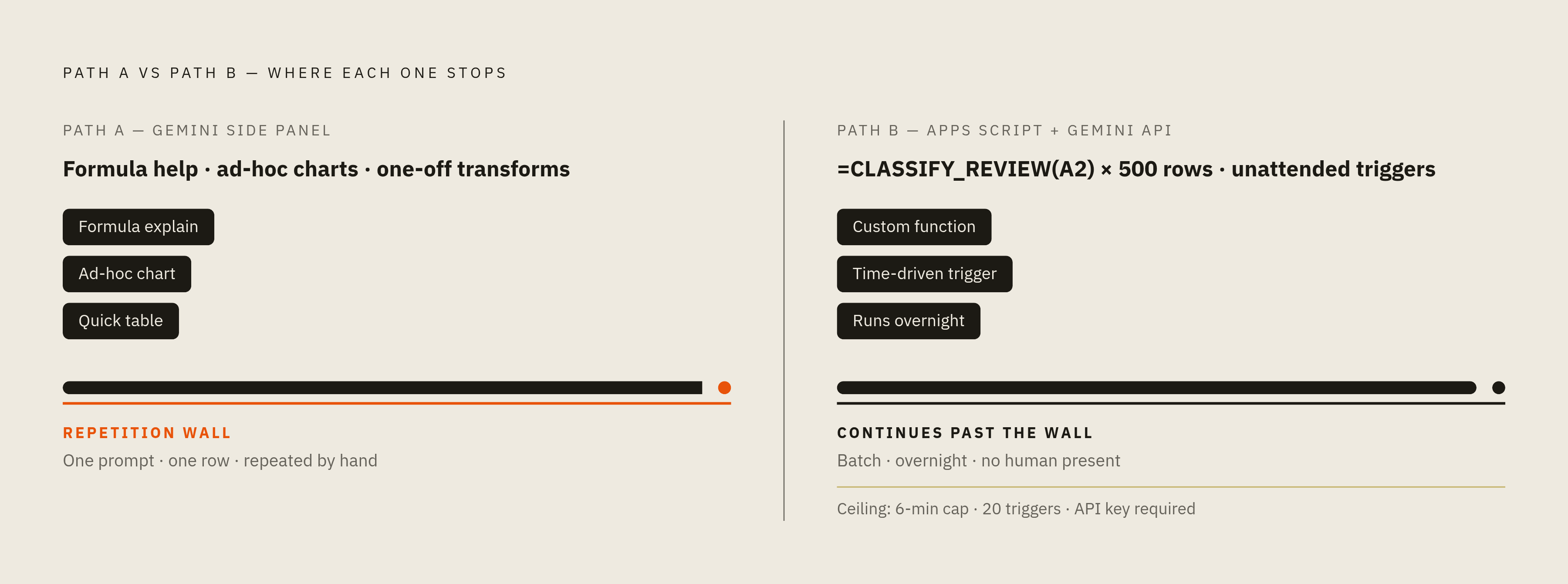
Where it struggles is complexity and scale, and the two problems compound each other. Complex, multi-step formulas trip it up, and it frequently misunderstands the actual structure of the data it's looking at, which produces confidently wrong output. But the real wall is repetition. Picture a sheet with several hundred customer reviews that need classifying, a column of product names that need translating, or hundreds of product descriptions that need keyword extraction. Each of those tasks, inside the side panel, means a separate manual interaction: one prompt, one response, one row, repeated by hand hundreds of times. That's not a workflow; it's a chore with an AI assistant standing next to it, watching. That's a chore with an AI assistant standing next to it, watching.
What Apps Script is and why it's the right bridge to the Gemini API
Apps Script is Google's cloud-based JavaScript platform, built on top of Drive, that lets you integrate with and automate tasks across Google's product suite. It's been around far longer than Gemini has, quietly running macros and custom menus in the background of countless spreadsheets.
The capability that makes it the right tool for this specific problem is simple to state: custom functions written in Apps Script can be called from a spreadsheet cell exactly like a built-in Sheets function. Write a function called CLASSIFY_REVIEW, and you can drop =CLASSIFY_REVIEW(A2) into a cell and drag it down five hundred rows, same as you would with one of the built-in spreadsheet functions.
Just as important, Apps Script doesn't need a person present to run. Automations can be triggered by a custom menu item, a button, a user action, or a time-based schedule. The entire pipeline described above, the one that breaks the side panel, can run unattended overnight. Starting in June 2026, Apps Script became a Google Workspace core service, which brings it under the same reliability, security, and compliance umbrella as the rest of Workspace, a meaningful shift for any team planning to depend on it for production workflows rather than side projects.
Getting a Gemini API key and storing it safely in Apps Script
Getting a key is the easy part. Head to Google AI Studio, sign in, click "Get API key," then "Create API key in new project," and copy what it gives you.
Where you put that key afterward matters a lot more. Never hardcode it directly into the script, and never check it into source control, version history has a long memory, and a leaked key is a leaked key regardless of how quickly you delete the commit. The recommended approach is Script Properties, Apps Script's built-in equivalent of environment variables. Store the key under a property name, something like GEMINI_API_KEY, and retrieve it at runtime with a single line: PropertiesService.getScriptProperties().getProperty('GEMINI_API_KEY'). This keeps the secret out of the code entirely, which means the code itself can be shared, reviewed, or copied without exposing credentials.
There are three ways to authenticate, depending on how the GeminiApp library is configured. A Google AI Studio API key is the simplest option and fits rapid prototyping well. A Google Cloud scoped user account requires a Google Cloud project with the Vertex AI API enabled, a heavier lift but a more controlled one. A Google Cloud service account sits in the same project setup but serves every user of the Apps Script application through a single account, which tends to suit team deployments better than individual keys scattered across a department.
Calling the Gemini API from Apps Script: the core technical pattern
UrlFetchApp, the built-in HTTP client that ships with Apps Script, is the mechanism behind all of this. It's how the script actually talks to Google's servers.
The request goes to an endpoint shaped like this: https://generativelanguage.googleapis.com/v1beta/models/{model}:generateContent?key={apiKey}. The POST payload is a JSON object containing a contents field with the actual prompt, and optionally a generationConfig block, where a setting like temperature controls how much randomness appears in the output. Lower temperature for consistent, repeatable classification tasks; higher temperature for anything closer to creative drafting.
The response comes back as JSON too, and the text you actually want is buried a few levels down, at candidates[0].content.parts[0].text. That string is what gets parsed out and written into the spreadsheet cell. It's a small piece of code, often under thirty lines once the authentication and error handling are in place, and it turns Sheets from a place where you ask Gemini questions into a place where Gemini does the asking for you, row after row.
What row-by-row automation looks like across real use cases
Invoice and email data extraction is one of the clearest applications. Apps Script sends a multimodal payload, email text alongside attached PDFs, to a Gemini model, gets back structured JSON, and parses that JSON into rows in the sheet. The appeal here is that there's no infrastructure to stand up or maintain: no server, no separate database, no deployment pipeline. It's serverless by default because Apps Script and Sheets already are.
FP&A teams have a particularly good use case sitting in plain sight. Building a cash flow forecast usually means pulling general ledger data, sales figures, and headcount schedules from several places, a repetitive task that eats hours every week across finance departments. Gemini-generated Apps Script code can automate the whole consolidation-and-emailing pipeline. A prompt as plain as "consolidate monthly expenses from five tabs and email when total exceeds budget" is enough for Gemini to generate a complete, working function; this script used to take a half-day of manual scripting tinkering.
Project roadmaps are another fit: an Apps Script approach can dynamically build out a project roadmap with an integrated Gantt chart directly inside Sheets, which lets agile teams spin up new project plans quickly instead of rebuilding a template by hand each sprint.
An AppSheet angle deserves mention. Add the script to a sheet, store the API key in Script Properties as described above, and call the function from an AppSheet bot using "Call a script." That pattern is useful for classifying uploaded documents by type, by language, and by a confidence score, all without a human opening the file first.
Triggers, making the API integration run without anyone clicking anything
Three trigger types cover almost everything a real workflow needs. Time-driven triggers run on a schedule: hourly, daily, weekly, or at a specific date and time, suited to routine reports, scheduled data refreshes, or an end-of-day consolidation. Edit triggers fire when a cell or range changes, which is what makes on-the-fly classification or tagging possible the moment new data lands. Form submit triggers execute the instant a Google Form gets submitted, a natural fit for intake workflows that need to route or enrich new entries right away.
Two platform limits deserve attention before anyone builds around them. Apps Script enforces a six-minute execution limit, so a large dataset has to be split into batches and processed in chunks across multiple trigger firings rather than in one long pass. And there's a hard cap of twenty triggers per user. Installable triggers handle heavier workloads more safely than the simple onEdit(e) trigger, which comes with more restricted execution conditions.
Deployment, in practice, follows a short sequence: generate the code through a Gemini prompt or write it by hand, paste it into the Apps Script editor under Extensions > Apps Script, set the trigger using the clock icon in the editor, and test everything on a duplicate sheet before it ever touches production data. For example, a time-driven trigger can handle scheduled consolidations at end of day, while an edit trigger can fire the moment a key cell changes. Both patterns are achievable with the tools already described, no additional infrastructure needed.
Changes to Sheets and Apps Script in 2026 affecting both paths
The March 2026 update to Gemini in Sheets expanded the side panel's reach well past its original scope. Gemini now assists with creating, organizing, and editing entire spreadsheets, covering both basic and advanced data analysis, and it draws on sources across files, emails, and the web. The broader March 2026 Gemini update also enables generating fully formatted first drafts of documents based on information pulled from Gmail, Chat, and Drive.
Google Next 2026 added several more pieces. Sheets canvas lets users build interactive mini-apps, dashboards, heat maps, kanban boards, on top of existing spreadsheet data. "Fill with Gemini" adds AI-assisted data fill through drag-and-drop or plain prompts. An "unstructured text" feature lets you paste unformatted text and have Gemini convert it straight into a proper table. Sheets itself got a capacity increase, doubling to 20 million cells with faster performance alongside it.
Workspace Intelligence is the broader piece behind all of it: Gemini now carries a real-time understanding of an organization's actual work context across Gmail, Chat, Calendar, Drive, Docs, Sheets, and Slides, which removes the need to manually re-explain context on every single query. On the developer side, a Gemini sidebar built directly into the Apps Script editor, for code explanation, generation, modification, and debugging, was listed as "coming soon" at the time of the announcement. And Apps Script's move to core-service status from June 2026 brings the reliability, security, and compliance guarantees mentioned earlier.
Google framed all of this at Google Next under one heading: a shift from AI assistance, Gemini helping you do the work, toward what it called the agentic enterprise, Gemini acting on your behalf without being asked step by step. That framing applies to both paths covered here. It describes where the side panel and the Apps Script integration are each heading, not necessarily where either one fully is today.
Pricing for both paths and what determines which tier you need
The built-in side panel isn't available to free Google account users by default. It requires a paid plan, which immediately changes the calculus for anyone comparing the two paths on cost alone: a free Gmail account with a personal Sheets habit doesn't get Path A at all, no matter how appealing the "Help me organize" button looks in a screenshot.
From there, the decision between the two paths turns on workload shape rather than price. A single analyst asking occasional questions about a live sheet, wanting a formula explained or a quick chart built, is well served by the side panel and a consumer or personal paid plan. A team that needs to classify five hundred reviews a week, extract structured data from a folder of invoices every night, or consolidate five tabs into a board report on a schedule needs Path B: an Apps Script integration calling the Gemini API directly, running on triggers, governed by whichever authentication method fits its scale. The API key method is cheapest to start and fastest to prototype; the Google Cloud service account is the one that scales cleanly across a team without every user needing their own credential. The right tier, in the end, is decided by how many rows need touching and how often, not by which option looks more modern in a product demo.
Sources
- Google Sheets and Workspace Updates from Google Next 2026
Provided the detail about Google Sheets doubling its cell capacity to 20 million cells at Google Next 2026.
- Apps Script | Google for Developers
Provided background on Apps Script as Google's cloud-based JavaScript platform for automating Google Workspace products.
- Gemini Sheets Apps Script Automation Guide
Provided the Apps Script six-minute execution limit detail and practical guidance on batching large datasets across trigger firings.
- How I connected Gemini AI to AppSheet using Apps Script (no webhook needed)
Provided the AppSheet integration pattern using Apps Script and the 'Call a script' bot action for document classification.
- https://github.com/mhawksey/GeminiApp
Provided details on the GeminiApp library and its three authentication methods including AI Studio key, user account, and service account.
- New ways to create faster with Gemini in Docs, Sheets, Slides and Drive
Provided details on the March 2026 Gemini update expanding side panel capabilities across files, emails, and the web.
- Bring your spreadsheet data to life with Sheets canvas
Provided information on Sheets canvas enabling interactive mini-apps and dashboards built on top of spreadsheet data.
- https://pulse.appsscript.info/p/2026/05/google-workspace-developer-news-gemini-powered-apps-script-core-service-news-and-more/
Provided information on Apps Script becoming a Google Workspace core service from June 2026.